
Want to use Claude to work directly with your WordPress website? With the Model Context Protocol (MCP), you can connect Claude to WordPress and allow it to interact with your site through an MCP server.
Depending on your setup and permissions, Claude can help you read WordPress content, create or edit posts and pages, manage media, and perform other supported WordPress tasks using natural language.
In this guide, we’ll show you how to connect Claude to WordPress, covering the requirements, setup process, authentication, testing, and common connection issues. Whether you use WordPress.com or self-hosted WordPress, you’ll learn how to set up the connection and start using Claude with your WordPress site.
Table of Contents
What is Claude?
Claude is an AI assistant developed by Anthropic. It can understand natural-language instructions and help with tasks such as writing, research, coding, analysis, and working with connected tools and services.
For WordPress users, Claude can go beyond generating text when connected through the Model Context Protocol (MCP). MCP allows Claude to communicate with supported external tools and data sources, including WordPress, so you can perform certain website tasks directly through conversational prompts.
Can You Connect Claude to WordPress?
Yes. You can connect Claude to WordPress using the Model Context Protocol (MCP). The exact setup depends on how your WordPress site is hosted and which MCP solution you use.
For WordPress.com, MCP support is built into the platform, and there is an official WordPress.com connector available in Claude. After enabling MCP access and authorizing the connection, Claude can interact with supported WordPress sites using natural-language instructions.
For self-hosted WordPress, you can use an MCP server or a WordPress MCP plugin to connect your site with Claude. WordPress also provides an MCP Adapter that allows AI clients such as Claude Desktop and Claude Code to discover and use WordPress capabilities.
Once the connection is established, what Claude can do depends on the MCP tools and permissions you provide. Supported tasks can include reading and managing posts, pages, comments, media, and other WordPress data or settings.
How Claude Connects to WordPress with MCP
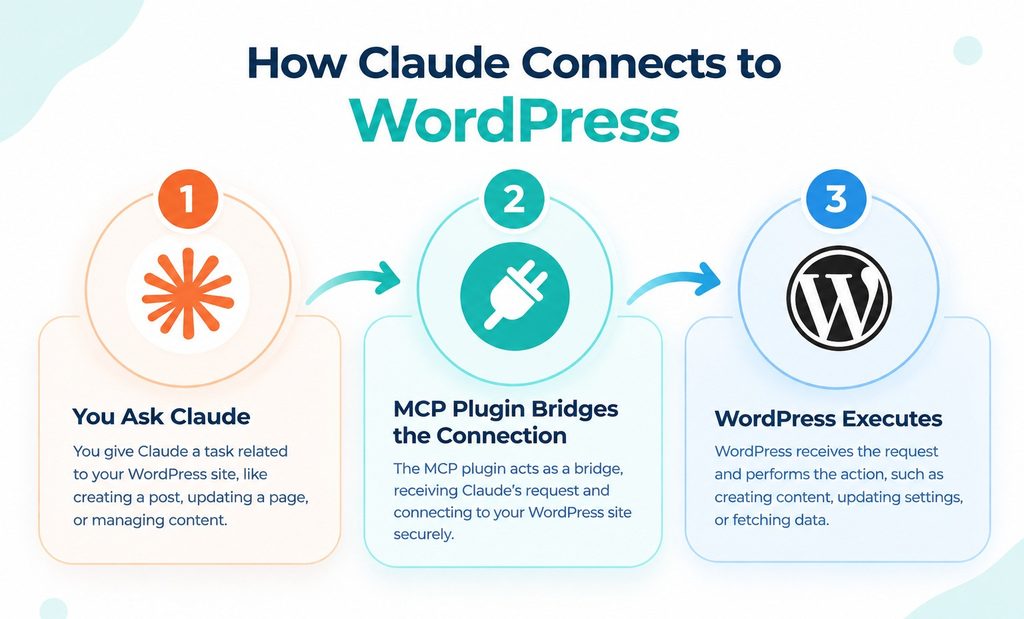
The Model Context Protocol (MCP) acts as the connection layer between Claude and WordPress. Instead of Claude accessing your website directly, an MCP server exposes specific WordPress capabilities as tools that Claude can discover and use.
The process generally works like this:
- You send a request to Claude: For example, you can ask Claude to find a published post or create a new WordPress draft.
- Claude identifies the required MCP tool: Claude determines which available WordPress capability can fulfill your request.
- MCP handles the request: The MCP server communicates with your WordPress site and executes the requested operation according to the permissions available to your account.
- WordPress returns the result: The requested content or action result is sent back through the MCP connection.
- Claude responds to you: Claude uses the returned information to provide an answer or confirm that the requested task was completed.
For example, with the WordPress MCP Adapter, Claude can discover available WordPress Abilities and call the appropriate tool to perform a task.
What You Need Before Connecting Claude to WordPress
Before connecting Claude to WordPress, make sure your WordPress site and Claude account are ready. AtlasMCP provides the MCP connection that allows Claude to interact with your WordPress website through supported tools and permissions.
Here’s what you’ll need:
- A WordPress website: You need access to a WordPress site where you can install and configure plugins.
- AtlasMCP plugin: Install and activate the AtlasMCP plugin on your WordPress website.
- A Claude account: You’ll need access to Claude to establish and use the MCP connection.
- AtlasMCP configuration: Complete the required setup in the AtlasMCP dashboard to make your WordPress site available to Claude.
- MCP connection details: Depending on your AtlasMCP setup, you may need the connection information provided by the plugin to add your WordPress site to Claude.
- WordPress permissions: Make sure the connected WordPress account has the permissions required for the tasks you want Claude to perform.
Once these requirements are ready, you can proceed with connecting Claude to WordPress through AtlasMCP.
How to Connect Claude to WordPress via MCP
Connecting Claude to WordPress with MCP is straightforward when you use AtlasMCP. It provides the MCP connection between your WordPress site and Claude, allowing Claude to interact with your website through supported WordPress tools.
In the following steps, we’ll walk you through the complete process of connecting Claude to your WordPress site with AtlasMCP, from configuring the plugin to adding the MCP connection in Claude and testing that everything works correctly.
Step 1: Enable OAuth 2.1 in AtlasMCP
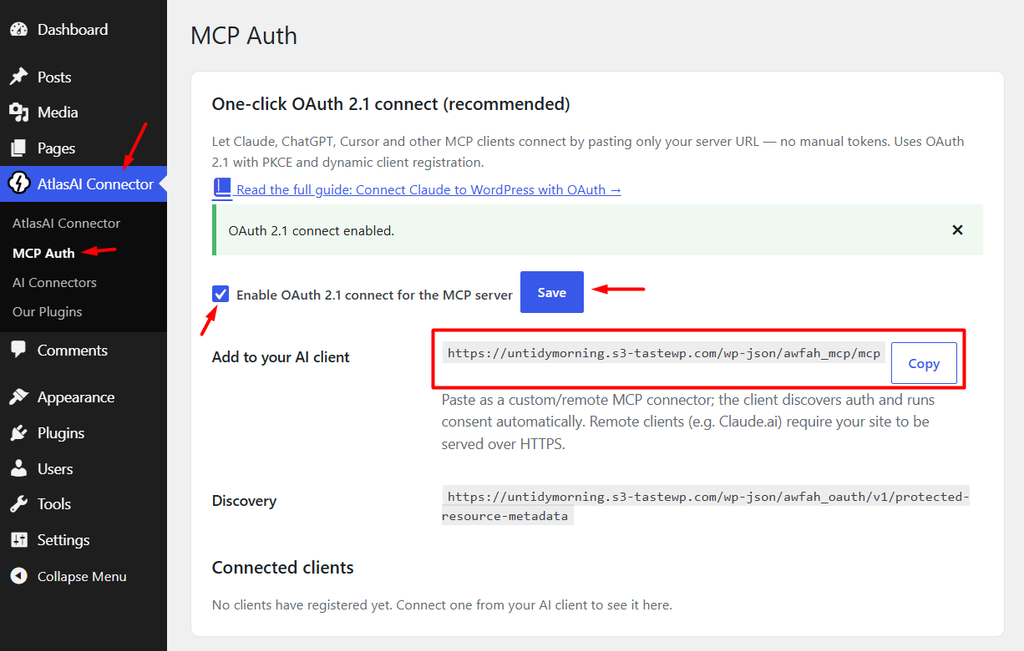
- From your WordPress dashboard, navigate to AtlasMCP > MCP Auth.
- Enable OAuth 2.1 for the MCP server.
- Click Save Changes to apply the configuration.
- Copy the MCP Server URL. You’ll need this URL when connecting AtlasMCP to Claude.
Step 2: Open Claude Settings
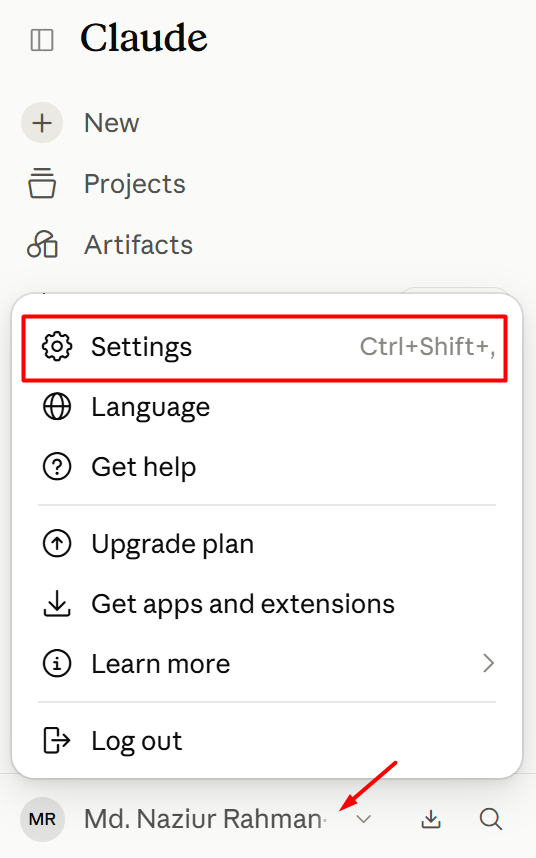
- Open Claude and log in to your account.
- Click your profile icon in the bottom-left corner.
- Select Settings from the menu.
Step 3: Add a Custom Connector
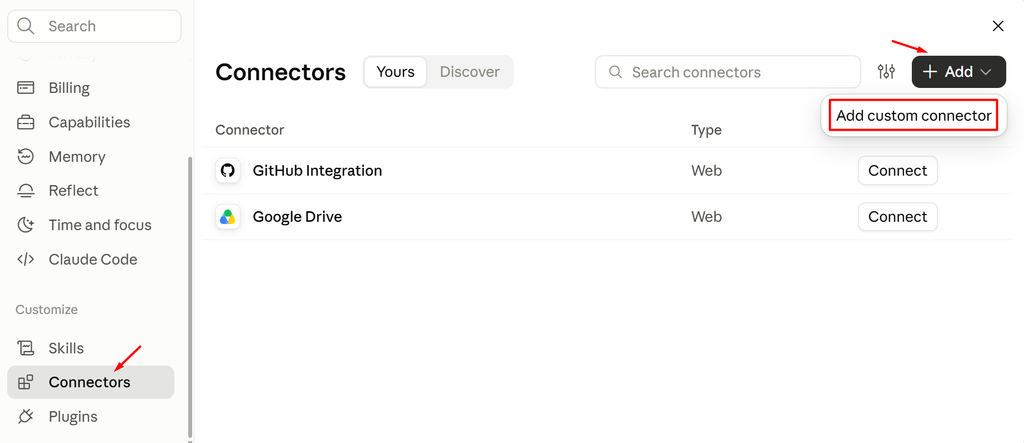
- In Claude Settings, open the Connectors tab.
- Click the Add button.
- Select Add custom connector to create a connection for your WordPress MCP server.
Step 4: Add the AtlasMCP Server URL
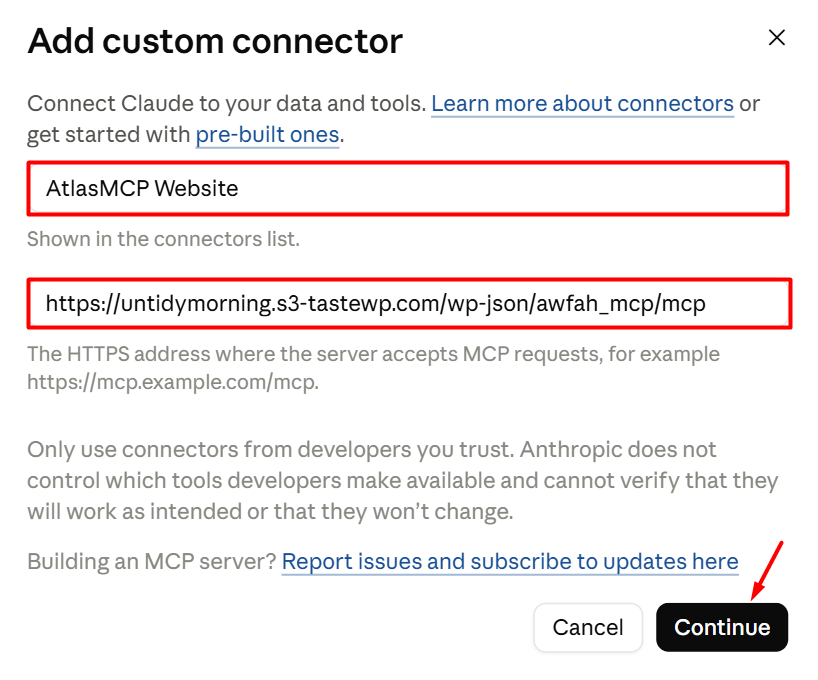
- Enter a name for your custom connector, such as AtlasMCP.
- Paste the MCP Server URL you copied from your WordPress dashboard.
- Click Continue to proceed with the connection.
- It will ask for couple more permissions. Keep approving the screen it asks for and you will be all set to go.
The same way you can connect Claude desktop app and Claude Code.
Read Also: Connect ChatGPT to WordPress
What Can Claude Do in WordPress After Connecting?
Once Claude is connected to your WordPress website through AtlasMCP, you can interact with supported WordPress functionality using natural-language prompts. Instead of switching between different WordPress admin screens for every task, you can ask Claude to perform supported actions on your behalf.
The exact capabilities depend on the tools and permissions enabled in AtlasMCP, but you can use Claude for tasks such as:
- Manage Posts: Ask Claude to create, update, retrieve, or manage WordPress posts using simple instructions.
- Manage Pages: Work with your WordPress pages by asking Claude to create, edit, retrieve, or update supported page content.
- Manage Media: Find and manage supported media files in your WordPress media library through conversational prompts.
- Manage Categories and Tags: Create, retrieve, or update supported categories and tags without manually navigating through the WordPress dashboard.
- Manage Comments: Review and manage supported WordPress comments directly through Claude.
- Search WordPress Content: Ask Claude to find specific posts, pages, or other supported content on your website.
- Create and Update Content: Give Claude instructions to draft or modify WordPress content, then review the changes before publishing when appropriate.
- Perform WordPress Tasks With Natural Language: Instead of remembering where a particular setting or feature is located, you can describe what you want to accomplish and let Claude use the available MCP tools.
Common Connection Problems and Quick Fixes
Although connecting Claude to WordPress with AtlasMCP is straightforward, you may occasionally run into connection or authentication issues. These problems are often caused by an incorrect MCP server URL, OAuth configuration, authorization issues, or changes to the connector settings.
Below are some common problems you may encounter and the steps you can take to resolve them.
Claude Cannot Connect to the MCP Server
If Claude cannot establish a connection with your WordPress site, first check whether the MCP Server URL was copied correctly from AtlasMCP.
- Go to WordPress Dashboard > AtlasMCP > MCP Auth.
- Make sure OAuth 2.1 is enabled.
- Confirm that the MCP Server URL is correct and complete.
- If you recently changed the AtlasMCP configuration, copy the MCP Server URL again and update the custom connector in Claude.
- Make sure your WordPress website is publicly accessible and running over HTTPS.
OAuth Authorization Is Not Working
OAuth 2.1 is required for securely authorizing the MCP connection. If the authorization process fails:
- Check that OAuth 2.1 is enabled in AtlasMCP > MCP Auth.
- Make sure you are logged into the correct WordPress account.
- Restart the connection process from the Claude connector settings.
- If you previously authorized the connector, remove or reconnect it and try the authorization process again.
- Check whether your browser is blocking redirects, cookies, or pop-ups required during authentication.
Claude Connects but Cannot Access WordPress
Sometimes the connector may appear to be connected while Claude cannot access your WordPress data.
- Confirm that the correct WordPress site was authorized.
- Check the permissions of the WordPress account used for the connection.
- Make sure the required AtlasMCP tools or capabilities are enabled.
- Try asking Claude to perform a simple read operation, such as finding a specific post.
- If read operations work but other actions fail, the issue may be related to the permissions required for those particular actions.
Claude Cannot Perform a Specific WordPress Action
A successful MCP connection does not necessarily mean Claude can perform every WordPress task. The available actions depend on the tools exposed by AtlasMCP and the permissions granted to the connected account.
If Claude cannot perform a particular task:
- Check whether the action is supported by your AtlasMCP configuration.
- Verify that the connected WordPress account has the necessary permissions.
- Try a simpler version of the request to determine whether the issue is with the task or the connection.
- Check the AtlasMCP documentation for the specific capability you are trying to use.
The MCP Server URL Is Not Working
If Claude reports an invalid or unreachable MCP server URL:
- Copy the URL directly from AtlasMCP > MCP Auth instead of entering it manually.
- Make sure there are no missing characters or extra spaces.
- Confirm that OAuth 2.1 is enabled and the changes have been saved.
- Update the URL in Claude’s custom connector if the URL has changed.
- Check that your website is accessible from the internet and uses a valid HTTPS connection.
The Connection Stops Working After It Was Working
If your Claude–WordPress connection previously worked but has stopped:
- Check whether the AtlasMCP plugin is still active.
- Review the OAuth 2.1 settings in AtlasMCP.
- Reconnect the custom connector in Claude.
- Check whether the WordPress user, permissions, or authentication settings have changed.
- Test the MCP connection with a simple WordPress request after reconnecting.
Claude Shows an Authentication or Permission Error
Authentication errors usually indicate that Claude is no longer authorized to access the WordPress site or that the connected account does not have sufficient permissions.
- Confirm that you are using the correct WordPress account.
- Reauthorize the Claude connector.
- Verify the user’s WordPress role and permissions.
- Make sure the AtlasMCP authentication settings are configured correctly.
- After making changes, reconnect Claude and test the connection again.
FAQs and Answers
Have questions about connecting Claude to WordPress with MCP? Here are answers to some of the most common questions about the setup, requirements, capabilities, security, and troubleshooting.
Do I Need an MCP Plugin to Connect Claude to WordPress?
For self-hosted WordPress, an MCP plugin such as AtlasMCP makes it easy to connect Claude with your website and access supported WordPress functionality through MCP.
Can I Connect Claude to WordPress Without an API Key?
Yes. With AtlasMCP, you can use OAuth 2.1 to authenticate the connection instead of manually using a traditional API key.
Can Claude Directly Edit My WordPress Website?
Yes, if the required WordPress tools are available through AtlasMCP and your connected account has the necessary permissions. You can ask Claude to make supported changes directly.
Can Claude Create WordPress Posts?
Yes. With the appropriate AtlasMCP capabilities and permissions, you can ask Claude to create WordPress posts using natural-language instructions.
Conclusion
Connecting Claude to WordPress doesn’t have to mean juggling complicated APIs, code, or endless configuration screens. With the right MCP plugin, your WordPress site can become accessible through a conversational interface, allowing you to work with supported WordPress tasks simply by telling Claude what you need.
From managing content to working with posts, pages, media, and other supported WordPress functionality, Claude can help reduce repetitive dashboard work and make everyday site management more convenient.
The key is to start small. Connect Claude with AtlasMCP, test a few simple tasks, review the permissions you’ve granted, and gradually explore what you can accomplish. Once the connection is working, you may find that managing your WordPress site feels less like navigating a dashboard and more like having a conversation with your website.