
Running a WordPress website can feel like a constant cycle of small tasks: creating content, updating pages, checking information, and managing different parts of your site. Over time, these routine jobs can take more time and effort than they should.
But what if you could handle many of these tasks simply by telling an AI assistant (like ChatGPT) what you want?
With Model Context Protocol (MCP), you can connect ChatGPT to WordPress and let it interact with your website through natural-language instructions. Depending on the tools and permissions available, ChatGPT can read your WordPress content and perform actions such as creating or updating posts and pages.
In this guide, you’ll learn how to connect ChatGPT to WordPress with MCP, what you need before getting started, and how to make the connection work safely and effectively.
Table of Contents
What is ChatGPT?
OpenAI’s ChatGPT is an AI assistant that can understand natural-language prompts and help with tasks such as writing, research, brainstorming, coding, analysis, and more. Instead of relying on menus or complicated commands, you can simply describe what you want in a conversational way.
For WordPress users, ChatGPT becomes even more useful when it can interact with website data and tools. This is where MCP (Model Context Protocol) comes in, providing a way for ChatGPT to connect with external services such as WordPress and perform supported actions directly.
What Does It Mean to Connect ChatGPT to WordPress?
Connecting ChatGPT to WordPress means giving the AI a way to communicate with your website instead of simply answering questions about it. Through MCP (Model Context Protocol), ChatGPT can connect to a WordPress MCP server and access the tools and data that you choose to make available.
Depending on the setup and permissions, this can allow ChatGPT to read WordPress content, create or update posts and pages, manage other website data, and perform supported tasks using natural-language instructions.
In simple terms, MCP acts as the bridge between ChatGPT and your WordPress website, turning ChatGPT from a tool that only gives instructions into an assistant that can work with your site.
How MCP Works Between ChatGPT and WordPress
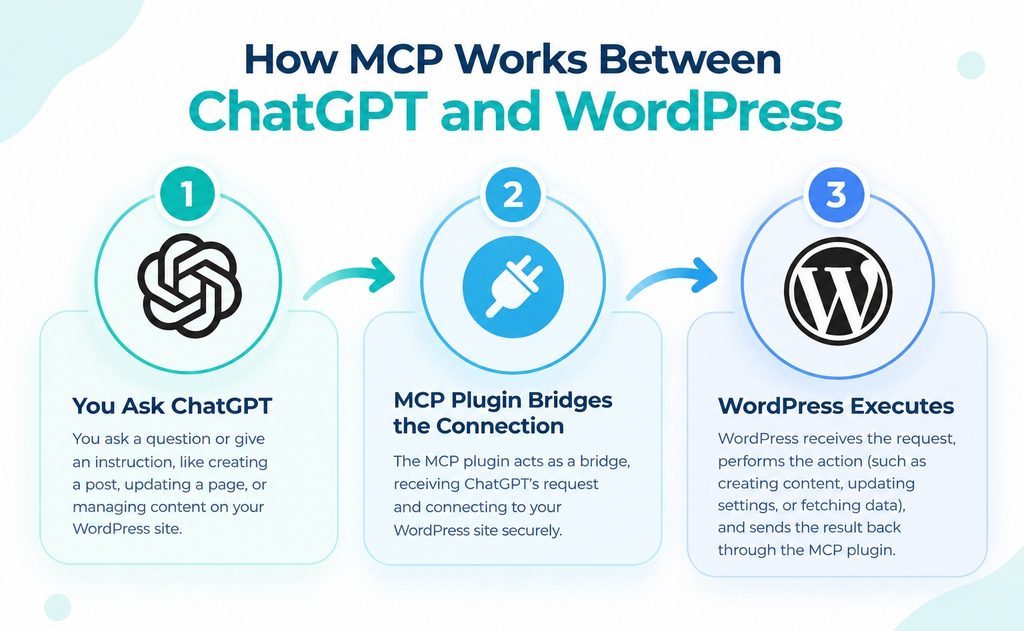
MCP acts as a communication bridge between ChatGPT and your WordPress website. Instead of ChatGPT connecting to WordPress directly, an MCP server sits between them and provides a standardized way to access specific WordPress tools and data.
The basic process looks like this:
ChatGPT → MCP Server → WordPress → MCP Server → ChatGPTWhen you give ChatGPT a request, the MCP server receives it, identifies the appropriate WordPress tool or action, and communicates with your website. WordPress then returns the requested information or performs the permitted action, and the result is sent back to ChatGPT.
For example, you could ask ChatGPT to find your latest WordPress posts. If your MCP connection provides the required tool and permissions, ChatGPT can request that information from WordPress and present the results in the conversation. Similarly, supported write tools can allow you to create or update content.
What Can ChatGPT Do with a Connected WordPress Site?
Once ChatGPT is connected to WordPress through MCP, it can do more than simply answer questions about your website. The exact capabilities depend on the MCP server, available tools, and permissions you provide. Some common possibilities include:
- Read WordPress content: Ask ChatGPT to find and review posts, pages, categories, tags, and other available site data.
- Create content: Use natural-language instructions to create new WordPress posts or pages when write access is supported.
- Update existing content: Ask ChatGPT to modify supported posts, pages, or other WordPress data without manually opening the editor.
- Manage content: Depending on the available tools, ChatGPT may help with categories, tags, comments, media, and other WordPress resources.
- Analyze your website: Have ChatGPT review available WordPress content and summarize, organize, or identify information based on your instructions.
- Automate routine tasks: Combine multiple supported actions into workflows, reducing repetitive work inside the WordPress dashboard.
- Work through natural language: Instead of navigating through WordPress menus, you can describe the task conversationally and let ChatGPT use the appropriate connected tools.
What You Need Before Connecting ChatGPT to WordPress
Before connecting ChatGPT to WordPress, you need a few things in place to make the setup smooth. In this guide, we’ll use AtlasMCP as the bridge between your WordPress website and ChatGPT. Make sure you have the following ready:
- A WordPress website: You need an active WordPress site where you can install and configure plugins.
- AtlasMCP plugin: Install and activate AtlasMCP on your WordPress website to provide the MCP connection.
- ChatGPT account: You’ll need a ChatGPT account that supports the required connection and MCP features.
- MCP access in ChatGPT: Depending on your ChatGPT plan and current feature availability, you may need to enable the appropriate MCP or developer features.
- WordPress admin access: You should have sufficient permissions to install and configure AtlasMCP and manage its connection settings.
- A secure website connection: Your WordPress site should use HTTPS so communication between ChatGPT, AtlasMCP, and your website is properly secured.
- AtlasMCP connection details: During setup, you’ll need the MCP server URL and any authentication or authorization details provided by AtlasMCP.
How to Connect ChatGPT to WordPress via MCP
Connecting ChatGPT to WordPress may sound technical at first, but the process is straightforward when you have the right MCP plugin in place. With AtlasMCP, you can set up the connection and give ChatGPT access to your WordPress site through MCP.
In the following steps, we’ll walk through the complete setup, from configuring AtlasMCP in WordPress to connecting the MCP server with ChatGPT and testing the connection.
Step 1: Enable OAuth 2.1 in AtlasMCP
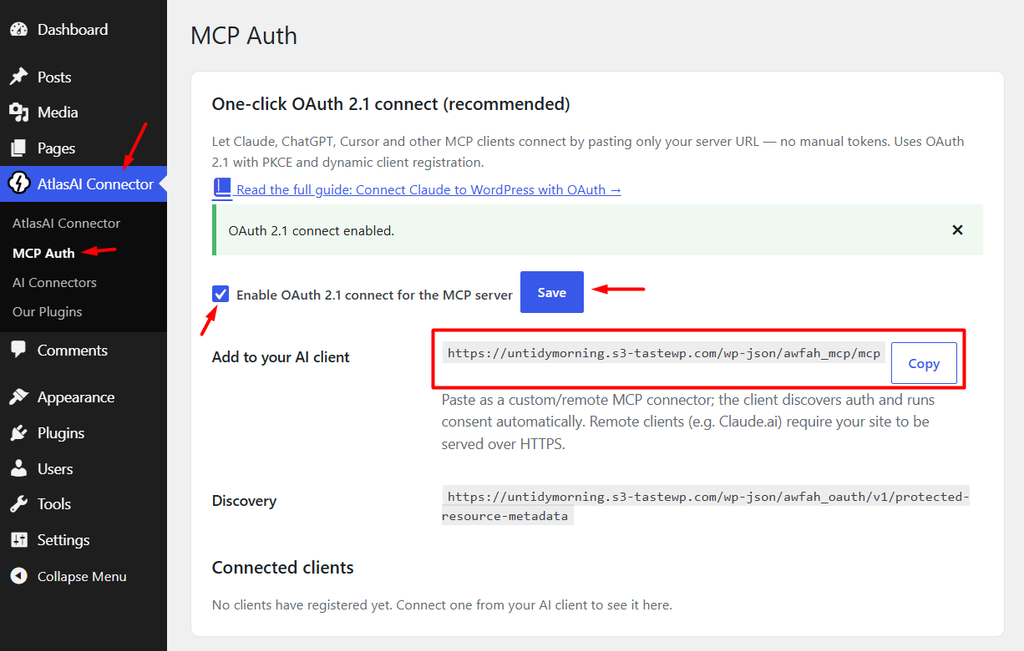
- From your WordPress dashboard, navigate to AtlasMCP > MCP Auth.
- Enable OAuth 2.1 for the MCP server.
- Click Save Changes to apply the configuration.
- Copy the MCP Server URL. You’ll need this URL when connecting AtlasMCP to ChatGPT.
Step 2: Open ChatGPT Settings
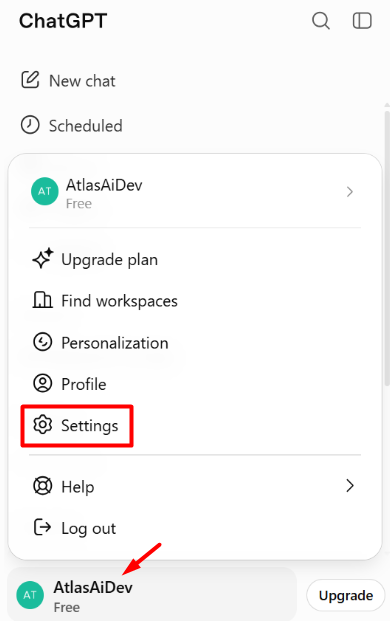
- Log in to your ChatGPT account.
- Open Settings from your account menu.
- Go to the settings area where you can manage ChatGPT features and connections.
Step 3: Enable Developer Mode
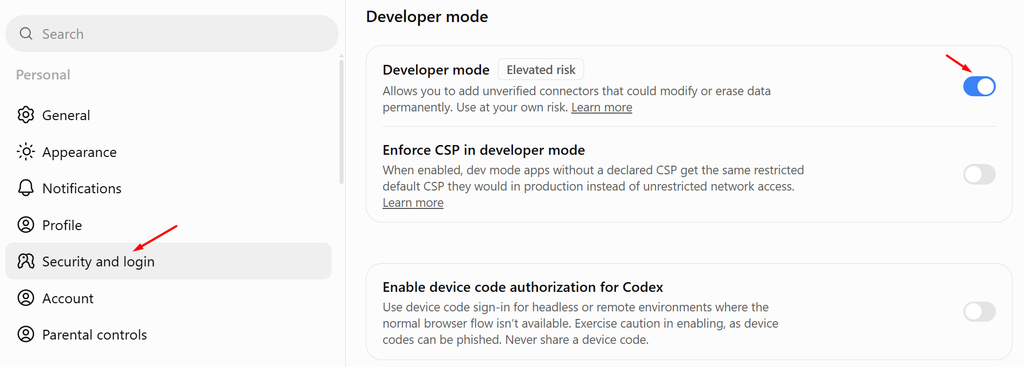
- In ChatGPT Settings, navigate to Security & Login.
- Find the Developer Mode option.
- Enable Developer Mode to allow MCP app connections.
Step 4: Create an MCP App
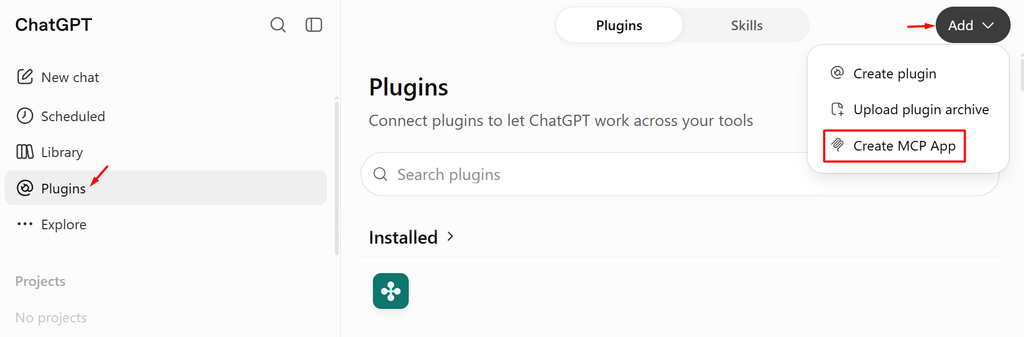
- Go to Plugins in ChatGPT.
- Click Browse Directory.
- Click the Add button.
- Select Create MCP App to start setting up your WordPress connection.
Step 5: Enter Your MCP App Details
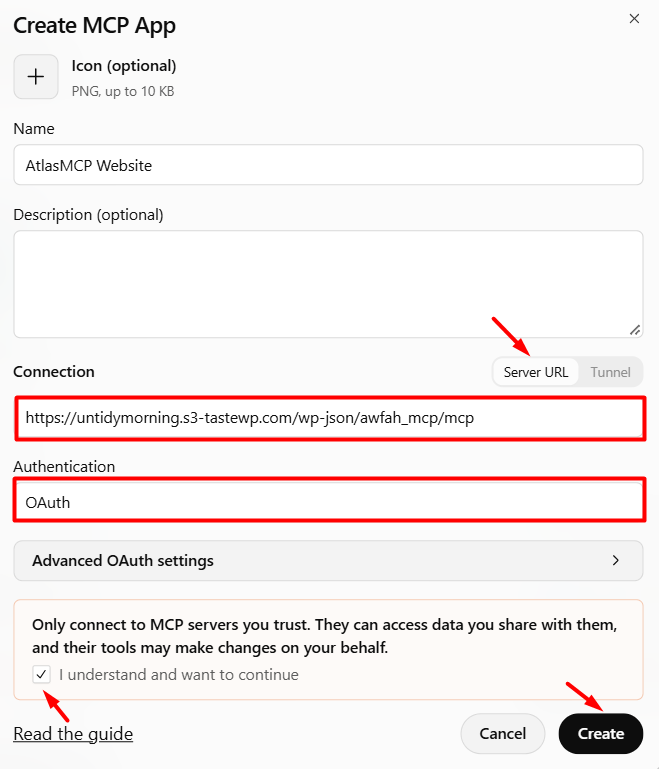
- Add an icon for your MCP app.
- Enter a name for the app.
- Add a short description of the connection.
- For Connection Type, select Server URL.
- Paste the MCP Server URL you copied from AtlasMCP.
- For Authentication, select OAuth.
- Review and agree to the required terms.
- Click Create to finish creating your MCP app.
- It will ask for couple more permissions. Keep approving the screen it asks for and you will be all set to go.
The same way you can connect ChatGPT desktop app and Codex.
Read Also: Connect Claude to ChatGPT
How to Test Your ChatGPT WordPress Connection
Once the MCP app is connected, it’s a good idea to test the connection before using ChatGPT for real WordPress tasks. Start with simple requests to confirm that ChatGPT can communicate with your site and access the tools you’ve enabled.
- Open a new ChatGPT conversation: Start a fresh chat and make sure your connected WordPress MCP app is available.
- Ask ChatGPT to read WordPress content: Try a simple prompt such as, “Show me my latest WordPress posts.” This checks whether ChatGPT can retrieve information from your site.
- Test a specific piece of content: Ask ChatGPT to find a particular post or page by its title. This helps confirm that it can access the relevant WordPress content.
- Test a supported write action: If your AtlasMCP setup provides write permissions, ask ChatGPT to perform a simple action, such as creating a draft post. This confirms that write access is working.
- Check the result in WordPress: Open your WordPress dashboard and verify that the requested action was completed correctly.
- Test only the permissions you need: If a request fails, check which tools and permissions are enabled in AtlasMCP rather than assuming the entire connection is broken.
- Try a few different requests: Test both read and write operations, where available, to make sure the connection works as expected before relying on it for regular WordPress tasks.
What Can You Ask ChatGPT to Do in WordPress?
Once ChatGPT is connected to your WordPress website, you can do much more than simply ask questions about your site. You can use natural-language prompts to handle everyday WordPress tasks, find information, and work with your content without constantly switching between different screens.
Here are some practical things you can ask ChatGPT to do in WordPress:
- Create a WordPress post: Ask ChatGPT to create a new post with a title, content, categories, or other supported details.
- Edit an existing post: Ask ChatGPT to find a specific post and update its content or supported fields.
- Create or update pages: Give ChatGPT instructions to create a new page or modify an existing one.
- Find WordPress content: Ask ChatGPT to search for specific posts, pages, categories, or other available content.
- Manage categories and tags: Ask ChatGPT to add, update, or organize categories and tags when supported.
- Work with media: Retrieve or manage supported media information directly through natural-language instructions.
- Review website content: Ask ChatGPT to find, summarize, or analyze content from your WordPress site.
- Manage comments: Retrieve or perform supported actions on comments using simple prompts.
- Handle multiple tasks: Give ChatGPT a multi-step request and let it perform the supported actions in sequence.
Common Issues and Troubleshoot
Even when the setup is completed correctly, you may occasionally run into connection errors or unexpected behavior. Most MCP connection problems are related to configuration, authentication, permissions, or the MCP server URL.
The following are some common issues you may encounter and how to troubleshoot them.
ChatGPT Cannot Connect to the MCP Server
If ChatGPT cannot connect to your WordPress MCP server, first check that the MCP Server URL is correct and complete. Make sure there are no extra spaces or missing characters in the URL.
Also verify that your WordPress website is accessible over HTTPS and that the MCP server is active. If the website or server is temporarily unavailable, ChatGPT will not be able to establish a connection.
OAuth Authentication Fails
If the OAuth authorization process does not complete successfully, check that you selected OAuth as the authentication method when creating the MCP app.
Try reconnecting the app and completing the authorization process again. If the authorization page does not open or returns an error, check whether your browser is blocking redirects, pop-ups, or cookies required during authentication.
ChatGPT Cannot See WordPress Tools
A successful connection does not necessarily mean that every WordPress action is available. The tools exposed by your MCP server determine what ChatGPT can access.
Check your MCP configuration and make sure the required tools are enabled. Also verify that your WordPress account has the permissions necessary to perform those actions.
ChatGPT Can Read but Cannot Edit WordPress
If ChatGPT can retrieve your WordPress content but cannot create or update it, the connection may only have read access.
Check whether write or modification tools are enabled and whether your WordPress user account has sufficient permissions. If write access is intentionally disabled, ChatGPT will not be able to perform actions that modify your website.
WordPress Actions Fail
Sometimes ChatGPT can connect successfully but a specific WordPress action still fails. This can happen because the requested action is not supported, the required tool is unavailable, or your account does not have the necessary permissions.
Try a simpler request first to determine whether the problem affects one particular action or the entire connection.
MCP Server URL Is Not Working
If the MCP Server URL itself appears to be unavailable, verify that you copied the correct URL from your WordPress MCP configuration.
You should also check that the relevant plugin or MCP server is active and that your hosting environment, security plugin, firewall, or CDN is not blocking MCP requests.
Connection Works but Changes Are Not Appearing
If ChatGPT reports that an action was completed but you cannot see the change in WordPress, refresh your WordPress dashboard and check the relevant content area.
For posts and pages, also verify whether the item was saved as a draft rather than published. The action may have succeeded but produced a different status than you expected.
FAQs and Answers
Connecting ChatGPT to WordPress with MCP can raise a few questions, especially around setup, permissions, security, and what ChatGPT can actually do. Here are quick answers to some of the most common questions.
Is It Safe to Connect ChatGPT to WordPress With MCP?
Yes, when properly configured. Use HTTPS, secure authentication, and only grant the permissions ChatGPT needs. Avoid unnecessary administrative access.
Do I Need an MCP Plugin to Connect ChatGPT to WordPress?
You need an MCP server to connect ChatGPT with WordPress. An MCP plugin such as AtlasMCP can provide this connection without requiring you to build an MCP server yourself.
Can ChatGPT Directly Edit My WordPress Website?
Yes, if your MCP server supports write actions and you provide the required permissions. ChatGPT can then create or update supported WordPress content.
Can ChatGPT Create WordPress Posts?
Yes. With the required write permissions and a supported MCP tool, you can ask ChatGPT to create WordPress posts using natural-language instructions.
Can ChatGPT Manage WooCommerce Through MCP?
Yes, if the MCP server provides WooCommerce tools and your account has the required permissions. The available actions depend on the tools supported by the MCP server.
Conclusion
Connecting ChatGPT to WordPress with MCP can make everyday website management feel much simpler. Instead of switching between different tools for every task, you can use natural-language instructions to work with your WordPress content and supported website functions.
As you’ve seen, the setup involves connecting an MCP server to ChatGPT, configuring the required permissions, and testing the connection before using it for real tasks. Once everything is working, you can use ChatGPT to read, create, update, and manage supported WordPress content.
The key is to start with the permissions you actually need and expand access only when necessary. With the right setup, MCP can turn ChatGPT into a more practical assistant for managing your WordPress website.