
What if your WordPress site could write its own drafts, design whole website, answer customer questions at 3 a.m., and fix its own schema while you sleep?
That’s not a far-off idea anymore. AI plugins can do all of it today. But here’s the catch: the term “AI plugin” now covers almost anything. Some only suggest a better headline. Others let ChatGPT or Claude log into your dashboard and change your site directly.
So which one should get the keys to your site?
We picked five plugins, each for a different job. One connects AI assistants to your site, one does a bit of everything, one writes SEO content, one handles scheduled posts, and one takes care of schema markup.
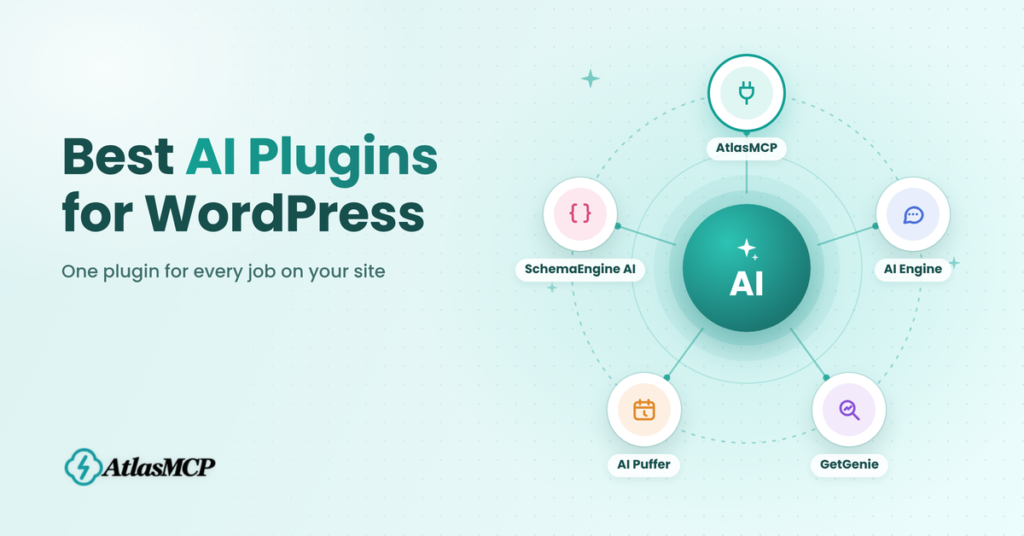
For each plugin, you’ll see what it actually changes, what it really costs, and how much control you keep. You won’t find any hype here, just what you need to choose.
Let’s get started.
Table of Contents
What does “AI plugin” mean in 2026?
AI plugins used to do one thing: write a paragraph when you typed a prompt. Today they work in two different ways, and knowing which one you need saves you from installing the wrong tool.
Built-in assistants live inside your dashboard. You click a button and the AI writes a draft, suggests a title, or answers visitors through a chatbot. MCP servers work the other way around. You keep using ChatGPT, Claude, or Gemini, and the AI reaches into your site from outside.
MCP (Model Context Protocol) is like a USB-C port for AI. It gives AI apps one standard way to plug into tools like WordPress. The plugin decides what the AI can touch, so look for read-only options, role limits, and activity logs.
You might wonder whether you still need a plugin now that WordPress 7.0 added AI to core. You do. Core only added the plumbing: a shared AI client, a place to store provider keys, and the Abilities API. It doesn’t give you a chatbot, SEO writer, or schema tool. Plugins add those, and the best ones work with core instead of against it.
Why AI Plugins Are Dominating Now?
AI plugins aren’t new. Some have been around since the first ChatGPT wave. So why does it feel like every WordPress site is adding one right now? The short answer is that several big changes happened at the same time, and together they turned AI from a fun extra into a practical tool.
Here’s what changed:
- WordPress made AI official: With WordPress 7.0, AI support became part of core. Plugins no longer have to build everything from scratch, so they’re getting better and more reliable, faster.
- MCP became the standard: Claude, ChatGPT, Gemini, and Cursor can now connect to WordPress the same way. That turned AI from a writing helper into something that can actually manage your site.
- AI models got cheaper and smarter: Tasks that once cost a few dollars now cost cents. Outputs are also more accurate, so you spend less time fixing them.
- Search is changing: More people get answers from AI Overviews and chat tools before they ever click a link. Site owners need content and schema that these systems can read and trust.
- You can choose your own AI: Most plugins now let you plug in your own key from OpenAI, Anthropic, or Google, or use built-in credits. You’re no longer stuck with one provider.
- Better safety controls: Read-only access, role limits, approvals, and activity logs make it far less risky to let AI touch a live site.
- Free versions are genuinely useful: You can test real features without paying first, which makes trying AI an easy decision.
Why Everyone Needs AI plugins in 2026?
Running a WordPress site means wearing many hats. You’re the writer, the SEO person, the support desk, and the developer, often all before lunch. AI plugins won’t replace you, but they can take the boring, repetitive work off your plate so you can focus on what actually grows your site.
Here’s where they make the biggest difference:
- Faster content creation: Drafts, outlines, titles, and meta descriptions take minutes instead of hours. You still edit and add your voice, but you never start from a blank page.
- Smarter SEO: AI can suggest keywords, check what top-ranking pages cover, and spot gaps in your content before you hit publish.
- 24/7 visitor support: A chatbot trained on your own pages can answer common questions at any hour, even while you sleep.
- Less manual site work: With MCP, you can ask Claude or ChatGPT to update posts, fix alt text, or check orders in plain language instead of clicking through menus.
- Better visibility in AI search: Clean schema markup and answer-first content help Google AI Overviews and tools like ChatGPT understand and cite your pages.
- Easier WooCommerce management: Product descriptions, tags, and store questions can be handled in bulk instead of one by one.
- Lower costs: Many AI plugins are free to start, and paying only for what you use is often cheaper than hiring extra help.
How we picked these plugins?
Not every plugin with “AI” in its name deserves a spot on your site. Some are abandoned, some hide their real costs, and some give AI more access than they should. So instead of picking the most popular names, we looked at how each plugin actually works and who it’s really built for.
Here’s what we checked:
- One clear job: Each plugin had to be the best fit for a specific task, such as MCP, chatbots, SEO writing, automation, or schema. That way, you’re not comparing five tools that do the same thing.
- Active development: We only included plugins updated recently and tested with the latest WordPress version. Old plugins can break or open security holes.
- A useful free version: You should be able to try real features before paying anything.
- Honest pricing: We looked at how you pay for the AI itself, whether through your own API key, monthly credits, or a paid plan, so there are no surprises later.
- Safety and control: We checked for read-only options, role-based access, approval steps, and activity logs.
- Privacy: We looked at where your content goes when the AI runs and whether anything is sent without your action.
- Compatibility: We checked support for the Block Editor, Classic Editor, WooCommerce, popular SEO plugins, and WordPress’s own AI features.
Best AI Plugins for WordPress
Every plugin below does something the others don’t. One connects AI assistants to your site, one covers almost everything, one writes SEO content, one runs on autopilot, and one handles schema. Pick the one that matches your biggest headache, or combine two that don’t overlap.
For each plugin, you’ll see what it does, what you control, what it costs, and who should skip it.
1. AtlasMCP
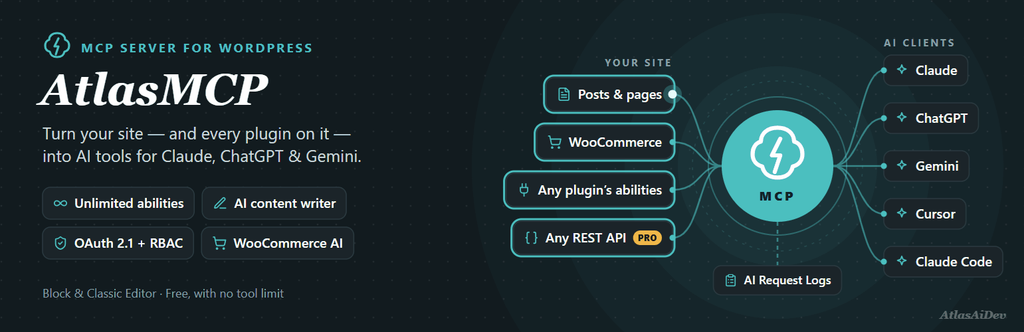
What if you could ask Claude, “Which products are low on stock?” and get a real answer from your store? AtlasMCP turns your WordPress site into a secure MCP server, so Claude, ChatGPT, Gemini, and Cursor can manage your posts, pages, media, and WooCommerce store in plain language.
Unlike most MCP plugins, it has no limit on AI abilities. It also picks up tools from other plugins automatically and adds AI writing panels right inside your editor.
Key features:
- Unlimited AI abilities, including tools from other plugins
- One-click connection for Claude, Cursor, and VS Code
- 24 free WooCommerce tools for products, orders, and sales reports
- AI writing for posts, excerpts, titles, featured images, and alt text
- Works in both the Block Editor and the Classic Editor
- Role-based access, read-only connections, and a pause switch
- Works with the official WordPress AI plugin
Pros:
- No cap on abilities, even in the free version
- Strong security with simple setup
- AI writing in the Classic Editor
- Doesn’t affect front-end page speed
- Pro has a 7-day free trial with no credit card required
Cons:
- New plugin with no reviews yet
- Free version is limited to three workflows
- Requires WordPress 6.8 or higher
2. AI Engine

AI Engine is the do-it-all option. It adds chatbots for visitors, content and image studios, an editor Copilot, and a free MCP server with more than 130 tools. It connects to almost every major AI provider and even supports local models. Its Workspace feature gives you a full-screen AI chat inside wp-admin, with free mobile apps.
Key features:
- Customizable chatbots with five themes
- Content Studio, Image Studio, and editor Copilot
- Free MCP server with 130+ tools
- Workspace chat with iPhone and Android apps
- Support for OpenAI, Anthropic, Google, Mistral, xAI, OpenRouter, and local models
Pros:
- Huge feature set in the free version
- Very active development and a 4.9/5 rating
- You pay AI providers directly, with no markup
Cons:
- Requires PHP 8.1 or higher
- Many settings can overwhelm beginners
- AI Forms, embeddings, and WooCommerce MCP tools require Pro
3. GetGenie
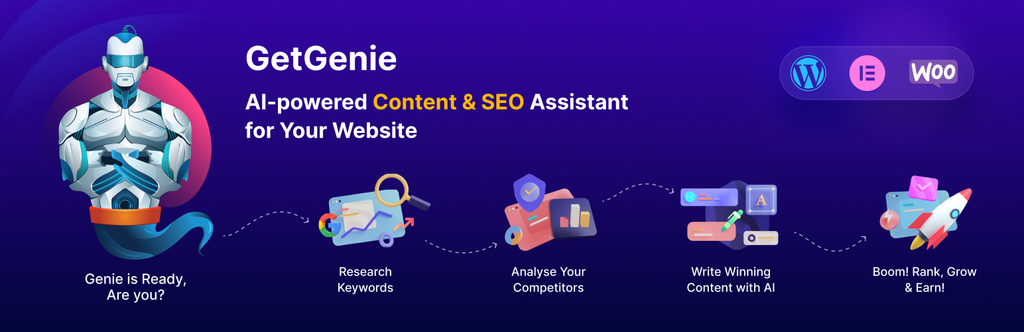
GetGenie is made for people who write to rank. It brings keyword research, competitor analysis, and content scoring into your editor, then helps you write the post with its Blog Wizard. It also checks whether your content is ready to be cited in AI Overviews.
Key features:
- NLP and semantic keyword research
- SERP and head-to-head competitor analysis
- One-click blog generation and 40+ templates
- AI Readiness Score and AI Overview Answer Builder
- SEO Insights through Google Search Console
Pros:
- SEO research and writing in one place
- No API key needed
- 2,500 free words every month
Cons:
- Word limits can run out fast
- Non-English output can feel generic
- No MCP or site management features
4. AI Puffer
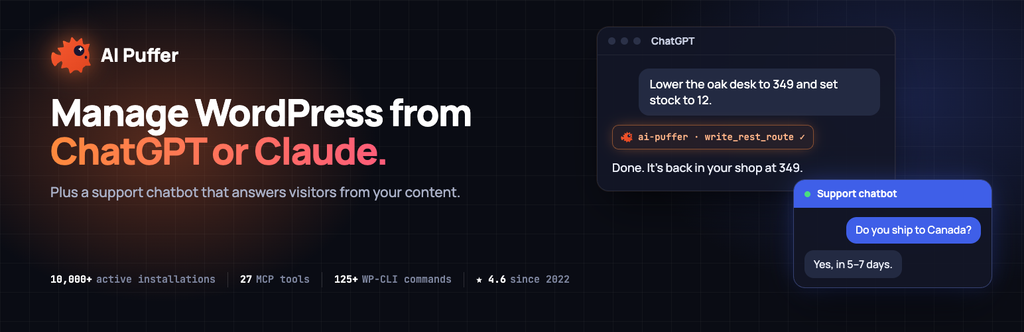
AI Puffer (formerly AI Power) is built for content on autopilot. You can schedule posts from topics or a CSV file and choose to save them as drafts or publish them. It also includes chatbots that answer from your own content, AI forms, image generation, and MCP site management.
Key features:
- Scheduled content from topics or CSV
- Chatbots trained on your posts, pages, and products
- AI forms and image generation
- MCP access for ChatGPT and Claude
- AI Puffer Cloud or your own API key
Pros:
- 25 free AI credits a month, with no API key needed
- Supports many AI providers
- Great for high-volume publishing
Cons:
- New MCP connections default to “Trusted,” which can publish and delete without approval
- Credit usage varies by model and request size
- MCP requests pass through AI Puffer’s hosted bridge
5. SchemaEngine AI
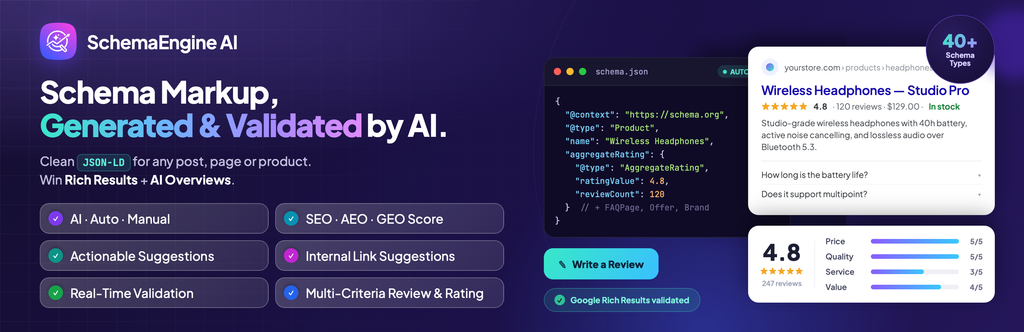
SchemaEngine AI (formerly Review Schema) helps search engines and AI tools understand your content. It generates JSON-LD schema from your pages, validates it against Google’s rich result rules as you edit, and links your entities together so search engines see the full picture.
Key features:
- Manual, Auto, and AI schema modes
- AI FAQ generation
- Real-time rich results validator and SERP preview
- 35+ schema types
- Built-in review and rating system
Pros:
- Fills a gap most AI plugins ignore
- Manual and Auto modes work without an API key
- Avoids duplicate schema with Yoast and Rank Math
Cons:
- Product, Recipe, Course, and other popular types are Pro-only
- AI mode requires your own API key
- Small review count so far
Which AI Plugin Should You Choose and Why?
There’s no single “best” AI plugin for everyone. The right choice depends on what’s slowing you down the most. Start by asking yourself one simple question: what job do I want AI to take off my plate?
Here’s a quick way to decide:
- Choose AtlasMCP if you already use Claude, ChatGPT, or Gemini and want them to manage your site safely. It’s also the best pick if you use the Classic Editor or run a WooCommerce store you’d like to manage through chat.
- Choose AI Engine if you want one plugin that does a bit of everything, especially a chatbot for visitors. It suits developers and tinkerers who enjoy fine-tuning settings.
- Choose GetGenie if your main goal is ranking on Google. It’s ideal for bloggers, content marketers, and agencies who want keyword research and writing in one place.
- Choose AI Puffer if you publish a lot and want content on a schedule. It’s a good fit for news sites, niche blogs, and anyone who wants to start without an API key.
- Choose SchemaEngine AI if you want rich results and better visibility in AI search. It works well alongside any of the other plugins.
Safety Checklist Before You Give AI Access to Your Site
Letting AI work on your site is a bit like handing someone the keys to your house. It’s useful, but you’d still want to know which rooms they can enter. A few simple steps before you connect any AI tool can save you from deleted posts, surprise bills, or worse.
Take a Full Backup First
Before you install any AI plugin, back up your files and database. If something goes wrong, you can restore your site in minutes instead of rebuilding it. Keep a fresh backup before every big AI task, especially bulk edits.
Test on a Staging Site
A staging site is a private copy of your website where you can experiment freely. Try your AI plugin there first and run a few real tasks. Once you’re happy with the results, move it to your live site.
Start With Read-Only Access
Most MCP plugins let you choose between full access and read-only. Start with read-only. Let the AI look up posts, check orders, or review content without changing anything. Give it write access only when you trust how it behaves.
Give the AI the Least Access It Needs
An AI connection usually acts as a WordPress user, so it can do whatever that user can do. Don’t connect it with an admin account if it only needs to edit posts. Use role-based access to switch off tools the AI doesn’t need, like deleting users or changing settings.
Turn On Approvals for Risky Actions
Some plugins can ask for your approval before publishing, deleting, or changing plugins. Turn this on. For example, AI Puffer’s Standard mode asks first, while Trusted mode runs changes directly. A single confirmation click is worth it.
Keep an Eye on the Activity Log
Activity logs show which tool the AI used, which user it acted as, and whether it worked. Check them regularly, especially in the first few weeks. If something looks strange, pause access right away and investigate.
Watch Out for Prompt Injection
AI reads whatever text you show it, including comments, form entries, and reviews written by strangers. Someone could hide instructions in that text, like “delete all posts.” Keep tasks that involve public content on read-only access, and never let AI act on that content without review.
Set Spending Limits on Your API Keys
If you use your own OpenAI, Anthropic, or Google key, set a monthly budget in your provider’s dashboard. A chatbot on a busy site or a runaway automation can burn through credits faster than you’d expect.
Know Where Your Data Goes
When AI runs, your content is sent to the AI provider, and sometimes through the plugin’s own servers first. Read the plugin’s privacy section to see exactly what leaves your site. Avoid sending sensitive customer data unless you’re comfortable with the provider’s terms.
Don’t Weaken Your Security to Connect
Firewalls and bot protection, like Cloudflare’s, sometimes block AI connections. Don’t turn off protection for your whole site. Instead, allow only the plugin’s specific MCP path, as most plugin guides explain.
Keep Plugins Updated and Review Access Regularly
AI plugins release security fixes often, so update them promptly. Every month, review your connected apps, remove ones you no longer use, and revoke old tokens. Fewer open doors means fewer risks.
Do AI Plugins Hurt SEO or Site Speed?
No, not if you use them wisely. Google doesn’t penalize content just because AI helped write it. It cares whether the content is helpful and accurate, so edit AI drafts and add your own experience before publishing.
Speed is rarely an issue either. Most AI plugins only run in your dashboard, and the AI processing happens on the provider’s servers. Chatbots are the exception, since they load scripts for visitors. Load them only where needed, and test your speed before and after installing.
FAQs and Answers
Still have questions? Here are quick answers to the most common ones.
What is the best free AI plugin for WordPress?
AtlasMCP is a great free pick for connecting Claude or ChatGPT to your site. AI Engine offers the most free features, while GetGenie and AI Puffer include free monthly credits.
Do I need an OpenAI API key?
Not always. GetGenie and AI Puffer Cloud work without one. AtlasMCP, AI Engine, and SchemaEngine AI use your own key, so you pay the provider directly.
Can ChatGPT or Claude edit my WordPress site?
Yes, through an MCP plugin like AtlasMCP. They can update posts, pages, and WooCommerce in plain language, and you control what they can access.
Does WordPress have built-in AI now?
Partly. WordPress 7.0 added the foundation for AI, but not ready-made tools like chatbots or SEO writers. Plugins still provide those.
Will AI-generated content rank on Google?
It can, if it’s helpful and accurate. Edit AI drafts and add your own insights before publishing.
Are AI plugins safe to use?
Yes, with the right setup. Back up your site, start with read-only access, and give the AI only the permissions it needs.
Which AI plugins work with the Classic Editor?
AtlasMCP, GetGenie, and AI Puffer support it. The official WordPress AI plugin works only with the Block Editor.
Which AI plugin is best for WooCommerce?
AtlasMCP is best for managing products and orders through AI chat. GetGenie and AI Puffer help write product descriptions.
Conclusion
AI plugins have moved past being a fun experiment. They can now write, optimize, answer customers, and even manage your site through a simple chat.
The trick is not to install everything at once. Pick the one plugin that solves your biggest problem, whether that’s connecting Claude with AtlasMCP, ranking with GetGenie, or getting rich results with SchemaEngine AI. Test it, set clear limits, and let it earn more access over time.
Start small, stay in control, and let AI handle the work you’d rather skip. Which job will you hand over first?