
Connecting AI with WordPress sounds simple until you actually start looking for the right MCP solution. There are now several MCP plugins for WordPress, but they don’t all offer the same features, security options, AI compatibility, or level of control.
So, which one should you use?
In this guide, we’ll break down the best MCP plugins for WordPress, including popular MCP server plugins, and compare what they offer, who they’re built for, and where each one fits best. Whether you want to connect Claude, ChatGPT, or another AI agent to your WordPress site, this list will help you find the right option.
Table of Contents
What Is an MCP Plugin for WordPress?
An MCP plugin for WordPress connects your WordPress website to AI assistants and agents through the Model Context Protocol (MCP). It allows AI tools such as Claude, ChatGPT, Cursor, and other compatible agents to communicate with your WordPress site and interact with supported WordPress functions.
Instead of simply asking AI how to perform a task, an MCP plugin can give the AI access to specific WordPress tools. Depending on the plugin, this may include creating or editing posts, managing pages, accessing media, working with WooCommerce, handling SEO tasks, or performing other site-management actions.
In simple terms, an MCP plugin acts as a bridge between WordPress and AI, giving AI agents a controlled way to work with your website.
How MCP Works with WordPress?
MCP works with WordPress by creating a connection between your website and an AI application. An MCP server exposes specific WordPress tools and capabilities that an AI agent can access and use when needed.
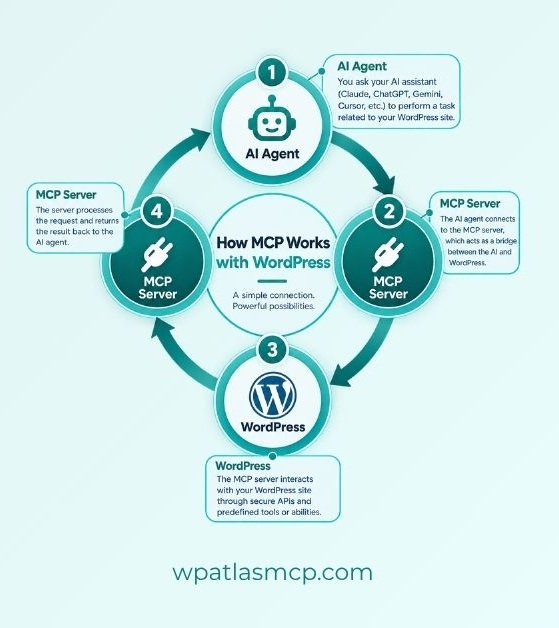
For example, when you ask an AI assistant to create a new WordPress post, the request is sent through the MCP connection. The MCP server communicates with WordPress, performs the permitted action, and returns the result to the AI.
The process generally looks like this:
AI Agent → MCP Server → WordPress → MCP Server → AI AgentDepending on the MCP plugin, the AI may be able to perform tasks such as reading content, creating or updating posts, managing pages, accessing media, working with WooCommerce, or handling other supported WordPress functions.
The important part is that MCP does not automatically give an AI unrestricted access to your website. The available tools and actions depend on how the MCP plugin is configured, including its authentication, permissions, and security settings.
What Can an MCP Plugin Do on a WordPress Website?
Imagine being able to tell your AI agent, “Update this post, optimize its SEO, and check the latest product details,” instead of jumping between different WordPress screens to do it yourself. That’s where an MCP plugin for WordPress becomes useful.
Depending on the plugin and the tools it provides, an MCP server can let AI agents interact with different parts of your website, including:
- Manage Posts and Pages: Create, read, edit, and manage WordPress content through natural-language instructions.
- Work With Media: Access the Media Library and, with supported plugins, upload or manage images and other media files.
- Access WordPress Data: Retrieve information about posts, pages, categories, tags, comments, users, and other supported WordPress data.
- Manage WooCommerce: Some MCP plugins connect AI agents with WooCommerce, allowing them to work with products, orders, customers, and store-related data.
- Handle SEO Tasks: SEO-focused MCP integrations can help AI work with titles, meta descriptions, schema, internal links, and other optimization tasks.
- Automate Repetitive Work: Combine multiple WordPress tools into workflows, reducing the need to perform the same manual tasks again and again.
- Perform Site Management Tasks: Depending on the plugin, AI may be able to access selected WordPress settings or administrative functions.
- Connect With Other Plugins: Advanced MCP solutions can extend AI access to popular WordPress plugins and third-party services, making the AI more useful across your entire website.
How We Selected the Best MCP Plugins for WordPress
Not every plugin that mentions MCP is built for the same job. Some give AI broad control over WordPress, while others focus on a specific area such as SEO, WooCommerce, or content management. So, instead of judging these plugins by feature count alone, we looked at the things that actually matter when connecting AI to a WordPress website.
Here are the key factors we considered when selecting the best MCP plugins for WordPress:
MCP Tool and Ability Coverage
We looked at what each plugin actually allows an AI agent to do. This includes core WordPress actions such as managing posts, pages, media, users, comments, settings, and other supported functions.
AI Client Compatibility
An MCP plugin is only useful if it works with the AI tools you want to use. We considered compatibility with popular MCP-compatible AI clients such as Claude, ChatGPT, Cursor, and other AI agents where supported.
Security and Permission Controls
Giving AI access to WordPress requires careful permission management. We considered authentication methods, user roles, access controls, available restrictions, and how much control site owners have over the tools exposed to AI.
Ease of Setup and Configuration
Connecting an AI agent to WordPress shouldn’t require unnecessary technical complexity. We considered installation, configuration, connection requirements, documentation, and how easily a typical WordPress user can get started.
Self-Hosted vs Hosted Architecture
Not all MCP solutions work in the same way behind the scenes. We considered whether the MCP server runs directly within WordPress, relies on an external service, or uses another architecture that may affect setup, control, privacy, and maintenance.
Free vs Pro Features and Pricing
Cost can be an important deciding factor. We compared free and paid versions, key feature differences, usage limitations, and pricing where publicly available.
WooCommerce and Third-Party Plugin Support
For many WordPress sites, core WordPress functionality is only part of the picture. We looked at support for WooCommerce and other popular plugins or integrations that can expand what an AI agent can actually do.
Maintenance, Updates, Reviews, and Adoption
MCP is evolving quickly, so ongoing development matters. We considered update activity, documentation, reviews, adoption, and the overall maturity of each solution to help readers distinguish established options from newer projects.
Best MCP Plugins for WordPress
Choosing an MCP plugin isn’t just about finding the one with the longest feature list. The right choice depends on what you want your AI agent to do, how much access you need to give it, and how well the plugin fits your WordPress setup.
Below, we’ve gathered some of the best MCP plugins for WordPress and looked at what makes each one different, including features, AI compatibility, security, pricing, and ideal use cases.
Whether you’re managing content, running a WooCommerce store, handling SEO, or building advanced AI workflows, you’ll find options worth exploring.
1. AtlasMCP – MCP Server for WordPress
If you want AI to do more than simply read your WordPress content, AtlasMCP is built to turn your website into an AI-accessible workspace. It connects WordPress with AI agents such as Claude, ChatGPT, Gemini, and Cursor, allowing them to work with your content, media, users, settings, WooCommerce, and other supported functionality through natural language.
A key difference is its ability to expand beyond a fixed set of built-in tools by discovering supported abilities and, in Pro, exposing REST API endpoints from other plugins.
Key Features
- Full WordPress MCP Server: Connect WordPress with Claude, ChatGPT, Gemini, Cursor, Windsurf, Claude Desktop, and other MCP-compatible AI clients.
- Unlimited AI Abilities: No fixed limit on the number of AI abilities your WordPress site can expose.
- WordPress & Plugin Integration: Automatically discovers abilities through the WordPress Abilities API, with Pro support for converting third-party REST API endpoints into AI tools.
- WooCommerce AI Management: Connect AI with products, orders, customers, reports, and other WooCommerce functionality, with read-only access in the free version and expanded write capabilities in Pro.
- AI Content Generation: Generate posts, pages, product descriptions, excerpts, titles, summaries, feature images, and image alt text directly inside WordPress.
- OAuth 2.1 & Role-Based Access: Uses OAuth 2.1 with PKCE and WordPress user roles to control what each AI connection can access and do.
- AI Activity & Audit Trail: Track AI tool usage and actions, including the associated WordPress user and role.
- Workflow & Developer Tools: Build reusable AI workflows, inspect available abilities, and use tools such as the Error Debugger to streamline WordPress management.
Pros
- Broad support for WordPress content, administration, AI content generation, and WooCommerce.
- Unlimited ability exposure makes it suitable for websites with many plugins and custom capabilities.
- Strong focus on authentication, permissions, and AI activity visibility.
- Supports multiple AI clients instead of locking users into a single assistant.
- Combines an MCP server with built-in AI content and workflow features.
- Can extend AI access to third-party plugin functionality through the Abilities API and REST API.
Cons
- The wide range of features can make the plugin feel more complex than simpler MCP solutions.
- Several advanced capabilities and granular controls require the Pro version.
- Third-party REST integrations can vary depending on how well individual plugins define their APIs.
2. WPVibe
Managing WordPress through an AI assistant sounds convenient, but the real value comes when that AI can actually work with your site. WPVibe turns a WordPress website into an MCP server, allowing AI agents such as Claude, ChatGPT, Cursor, and Windsurf to perform WordPress tasks through natural-language instructions.
It supports more than basic content management, with integrations for WooCommerce, popular page builders, WordPress APIs, and selected site administration tasks.
Key Features
- WordPress MCP Server: Connect WordPress with Claude, ChatGPT, Cursor, Windsurf, OpenCode, and other MCP-compatible AI agents.
- Content Management: Create and update posts, pages, media, categories, tags, and custom post types through AI.
- WooCommerce & Page Builder Support: Work with WooCommerce products and supported builders such as Elementor, Bricks, Breakdance, Beaver Builder, and Divi.
- Theme & Site Management: Browse and edit theme files through a draft and preview workflow, with support for selected WordPress administrative tasks.
- Approval-Based Actions: Uses human approval for destructive operations and maintains an approval log for sensitive AI actions.
Pros
- Supports multiple popular AI clients.
- Covers a broad range of WordPress management tasks.
- Includes WooCommerce and page builder integrations.
- Provides approval controls for sensitive operations.
- Useful for both content workflows and developer-focused tasks.
Cons
- Its wide range of features may feel complex for users who only need basic MCP functionality.
- Some advanced workflows may require greater technical knowledge.
- Uses the WPVibe service to relay MCP requests between the AI client and WordPress.
3. Easy MCP AI
Giving an AI agent access to WordPress is useful only when you can control what it can actually do. Easy MCP AI takes a security-focused approach, turning your WordPress site into an MCP server while letting you decide which tools and permissions an AI client can access.
It supports popular AI clients such as Claude, ChatGPT, Cursor, and OpenAI Codex, along with integrations for WooCommerce, SEO plugins, analytics platforms, and other WordPress functionality.
Key Features
- Secure WordPress MCP Server: Runs directly on your WordPress site and uses OAuth 2.1, WordPress permissions, rate limits, and token-level access controls.
- Broad AI Tool Support: Provides a large collection of MCP tools for WordPress, WooCommerce, content management, SEO, analytics, and supported plugins.
- WooCommerce & SEO Integration: Lets AI agents work with WooCommerce data and supported SEO plugins such as Yoast SEO, Rank Math, AIOSEO, SEOPress, and others.
- Analytics & Search Data: Connects AI with Google Analytics, Google Search Console, Semrush, SE Ranking, DataForSEO, and Ahrefs for SEO and performance insights.
- Audit & Change Tracking: Includes an Audit Log and Change History to monitor AI actions and review changes made to the site.
Pros
- Strong focus on security, permissions, and least-privilege access.
- Supports a wide range of AI clients and WordPress integrations.
- Useful for combining WordPress management with SEO and analytics data.
- Includes WooCommerce tools for AI-powered store management.
- Runs on the user’s own WordPress site without a hosted MCP relay.
Cons
- The large number of tools and configuration options may be overwhelming for beginners.
- Some integrations require separate third-party accounts, credentials, or API keys.
- Advanced AI workflows can require careful permission and tool configuration.
4. Royal MCP
What happens when an AI assistant can work with not just WordPress, but also the plugins and tools already powering your site? Royal MCP takes a broad integration approach, connecting AI agents such as Claude, ChatGPT, Gemini, Cursor, and others to WordPress through a large collection of core and third-party MCP tools.
It supports WordPress management alongside integrations for WooCommerce, Elementor, Divi, ACF, Yoast SEO, and several other popular plugins.
Key Features
- 200+ MCP Tools: Provides a large collection of WordPress core and third-party tools for content, media, users, taxonomies, settings, and other site management tasks.
- Third-Party Plugin Integrations: Includes dedicated tools for WooCommerce, Elementor, Divi, ACF, Yoast SEO, WPForms, UpdraftPlus, BuddyPress, and other supported plugins.
- Broad AI Compatibility: Works with Claude, ChatGPT, Google Gemini, Perplexity, DeepSeek, Mistral, and other MCP-compatible AI clients.
- OAuth 2.0 & Access Controls: Supports OAuth 2.0 with PKCE, API-key authentication, session management, rate limits, and activity logging.
- AI Action Safety: Destructive operations can require approval, while new content starts as drafts and supported changes can be reversed using an undo system.
Pros
- Very broad coverage of WordPress functionality and third-party plugins.
- Supports a wide range of AI clients and development environments.
- Includes dedicated integrations for popular tools such as WooCommerce and page builders.
- Strong focus on authentication, approvals, activity tracking, and reversibility.
- Supports both traditional WordPress workflows and newer AI-agent standards.
Cons
- The large number of tools and integrations can make configuration more complex.
- Dedicated third-party integrations are not available for every WordPress plugin.
- Advanced AI-driven site management may require more technical knowledge.
5. Enable Abilities for MCP
Giving AI access to your WordPress site is one thing; deciding exactly what it is allowed to access is another. Enable Abilities for MCP focuses on that control, allowing site owners to choose which WordPress Abilities are exposed to AI assistants through the MCP Adapter.
The plugin offers a large collection of abilities covering content, SEO, WooCommerce, custom post types, navigation menus, and several popular WordPress plugins.
Key Features
- Granular Ability Control: Toggle individual WordPress Abilities on or off, so AI assistants only see the tools you choose to expose.
- 112+ WordPress Abilities: Provides abilities across content management, SEO, WooCommerce, custom post types, menus, accessibility, and other areas.
- Third-Party Plugin Support: Includes integrations for WooCommerce, Rank Math, Yoast SEO, SEOPress, Elementor, LearnDash, Tutor LMS, The Events Calendar, JetEngine, and others.
- OAuth 2.1 Connections: Supports OAuth-based connections for Claude and other compatible AI clients, with user-specific WordPress roles and permissions.
- MCP & Abilities API Integration: Uses the WordPress Abilities API and MCP Adapter to make selected abilities available as MCP tools.
Pros
- Excellent control over which individual abilities AI can access.
- Covers a wide range of WordPress and third-party plugin functionality.
- Supports role-based access through WordPress user permissions.
- Includes dedicated SEO, WooCommerce, LMS, and page-builder abilities.
- Useful for sites that want a more controlled and modular MCP setup.
Cons
- Requires the MCP Adapter plugin in addition to Enable Abilities for MCP.
- The large number of abilities and settings may take some time for beginners to configure.
- Best suited to users who specifically want ability-level control rather than a simple plug-and-play MCP server.
6. AI Engine
WordPress can do much more with AI than generating a few lines of content. AI Engine turns your site into an AI-powered workspace, combining AI content tools, chatbots, automation, developer features, and an MCP server in one plugin.
Its MCP functionality allows compatible AI agents such as Claude, ChatGPT, and OpenAI Codex to interact with WordPress and perform tasks such as managing content, media, plugins, themes, and WooCommerce.
Key Features
- WordPress MCP Server: Connect Claude, ChatGPT, Claude Code, OpenClaw, and other MCP-compatible AI agents to your WordPress site.
- Content & Media Management: Create and edit posts, rewrite content, manage media, generate images, and perform other AI-assisted content tasks.
- WooCommerce & WordPress Management: Let AI work with products, orders, inventory, customers, comments, plugins, themes, and other supported WordPress functionality.
- AI Chatbots & Workspace: Build customizable chatbots and use an in-dashboard AI workspace to interact with your configured AI models and site.
- Developer & Automation Tools: Provides function calling, REST APIs, internal APIs, MCP support, and integrations that can be used to build custom AI workflows.
Pros
- Combines MCP with a broad set of AI features beyond WordPress management.
- Supports multiple major AI providers and MCP-compatible clients.
- Useful for content creators, developers, and site administrators.
- Includes WooCommerce and additional WordPress integrations.
- Offers extensive customization and developer-focused capabilities.
Cons
- The plugin’s extensive feature set may feel overwhelming for users who only need an MCP server.
- Advanced features and integrations can require additional configuration.
- Some capabilities depend on other plugins or separately configured AI providers.
7. WSP MCP
What if your WordPress site could give AI exactly the tools it needs without handing over the keys to everything? WSP MCP – AI Agents Connector takes a control-first approach, providing a native MCP server that lets AI clients interact with WordPress while giving administrators granular control over individual abilities.
It supports core WordPress features along with integrations for WooCommerce, Elementor, Yoast SEO, Advanced Custom Fields, and Gravity Forms.
Key Features
- Native MCP Server: Runs its own MCP server through a REST endpoint, so the WordPress MCP Adapter is not required.
- Granular Tool Controls: Each ability can be enabled or disabled individually, with write abilities turned off by default.
- Multiple Authentication Options: Supports WordPress Application Passwords and plugin-generated API keys for connecting compatible AI clients.
- Third-Party Integrations: Adds dedicated tools for WooCommerce, Elementor, Yoast SEO, ACF, Gravity Forms, and Ultimate Addons for Elementor when those plugins are active.
- Audit & Analytics: Provides an admin-side audit log and analytics dashboard showing tool usage, requests, performance, and errors.
Pros
- Native MCP server with no required companion MCP plugin.
- Granular control over individual AI tools and permissions.
- Supports several popular WordPress plugins.
- Includes self-hosted audit logging and usage analytics.
- Provides configuration helpers for connecting supported AI clients.
Cons
- Advanced integrations depend on the relevant third-party plugins being installed.
- The number of available tools can make configuration more involved for beginners.
- Write capabilities require careful setup to ensure AI access matches the intended WordPress permissions.
How to Install an MCP Plugin on WordPress
Installing an MCP plugin on WordPress is usually straightforward, but the exact connection process can vary from one plugin to another. Most setups follow the same basic path: install the plugin, configure authentication and permissions, get your MCP server URL, and connect it to your preferred AI client.
Steps to Install an MCP Plugin on WordPress
- Install the MCP Plugin: From your WordPress dashboard, go to Plugins → Add New Plugin, search for the MCP plugin you want to use, and click Install Now. You can also upload the plugin ZIP file manually when required.
- Activate the Plugin: After installation, click Activate. The plugin may add a new MCP or AI-related section to your WordPress admin menu.
- Configure MCP Settings: Open the plugin’s settings and configure the available options, such as authentication, enabled tools or abilities, user permissions, and other security controls.
- Get Your MCP Server URL: Find the plugin’s MCP Server URL or connection endpoint. This is the address your AI client will use to communicate with WordPress.
- Choose Your Authentication Method: Depending on the plugin, you may use OAuth, an Application Password, an API key, or another supported authentication method.
- Connect Your AI Client: Open the settings for Claude, ChatGPT, Cursor, or another MCP-compatible AI client and add your WordPress MCP server using the provided URL and authentication method.
- Authorize the Connection: Complete the login or authorization process and approve the requested permissions. For OAuth-based connections, this may happen through a browser consent screen.
- Test the Connection: Ask the AI agent to perform a simple read-only task, such as retrieving a post or listing pages, to confirm that the MCP connection is working correctly before enabling write actions.
- Review Permissions: Keep only the tools and abilities you actually need. For security, avoid giving an AI agent broader WordPress access than necessary.
Common Problems with WordPress MCP Plugins
MCP can make WordPress feel dramatically easier to manage with AI, but the first connection does not always go perfectly. Authentication errors, missing tools, permission conflicts, and client-specific setup issues are some of the most common problems users run into.
Here are the problems you’re most likely to encounter and what you can do to fix them.
MCP Authentication Errors
An AI client may fail to connect even when your MCP plugin is installed and active. This is often caused by incorrect credentials, an incomplete OAuth setup, an expired token, or an unsupported authentication method.
Fix: Check that you are using the exact MCP server URL provided by the plugin. Reauthorize the connection or generate a new Application Password or API key when applicable. Also make sure your WordPress site is using HTTPS if the chosen authentication method requires it.
AI Agent Cannot Access WordPress
Your AI client may connect successfully but still be unable to read or modify your WordPress content.
Fix: Check the WordPress user account associated with the MCP connection. Make sure that account has the required capabilities and that the specific tools or abilities are enabled in the MCP plugin. For write actions, verify that the plugin is not restricting those tools by default.
MCP Tools Are Missing
Sometimes the MCP connection works, but expected tools do not appear in Claude, ChatGPT, Cursor, or another AI client. This can happen when a required plugin is inactive or when specific abilities have not been enabled.
Fix: Open the MCP plugin settings and review the available tools or abilities. Activate any required third-party plugin, then reconnect or refresh the MCP client so it can discover the updated tool list.
Permission and Role Issues
An administrator may have access to tools that an editor or other WordPress user cannot use. This can look like an MCP connection problem when the real issue is WordPress permissions.
Fix: Check the role of the WordPress user connected to the MCP server. Review both WordPress capabilities and any additional per-tool or per-ability restrictions configured by the MCP plugin. Test the same request with an account that has the necessary permissions.
MCP Endpoint or Connection Problems
A wrong endpoint, REST API conflict, firewall rule, security plugin, or server configuration can prevent the AI client from reaching the MCP server.
Fix: Copy the MCP endpoint directly from the plugin instead of entering it manually. Confirm that the URL is publicly reachable when required, check your security or firewall rules, and make sure your hosting environment allows the relevant REST or HTTP requests.
Changes Made by AI Do Not Appear
An AI agent may report that it created or updated something, but the change may not immediately appear on the live site. Some MCP plugins intentionally save new content as drafts or require approval before destructive actions.
Fix: Check your WordPress drafts, approval prompts, activity logs, or MCP audit logs. Review the plugin’s write and publishing settings before assuming the operation failed.
The AI Calls the Wrong Tool or Produces Unexpected Results
With large MCP tool collections, an AI agent may occasionally choose an unexpected tool or misunderstand a poorly described ability, particularly with third-party integrations.
Fix: Use clearly named and well-documented tools, disable unnecessary abilities, and update the MCP plugin and integrated plugins to their latest compatible versions. Reducing the available tool set can also make tool selection more predictable.
MCP Connection Stops Working After a Plugin or WordPress Update
Updates to WordPress, the MCP plugin, authentication system, or third-party integrations can occasionally change available tools or connection behavior.
Fix: Check the MCP plugin’s changelog and documentation, reconnect the AI client, and verify that all required plugins are active and compatible. Testing the connection after major updates can help catch problems early.
Conclusion
The best MCP plugin for WordPress ultimately depends on what you want your AI agent to do. Some plugins focus on simple WordPress content management, while others go deeper into WooCommerce, SEO, page builders, automation, or granular access control.
For users who want a broader AI-to-WordPress connection, AtlasMCP stands out with its combination of WordPress management, unlimited AI abilities, WooCommerce support, plugin integration, AI content tools, workflows, and role-based access controls. Other options on this list may make more sense when you need a specific ecosystem or a particular type of integration.
Before choosing an MCP server plugin, look beyond the number of tools it offers. Consider supported AI clients, permissions, authentication, security, third-party integrations, ease of setup, and the actual tasks you want AI to perform.
As the MCP ecosystem continues to grow, WordPress users now have more ways to turn AI from a content assistant into a practical website management tool.